
What this guide helps you do
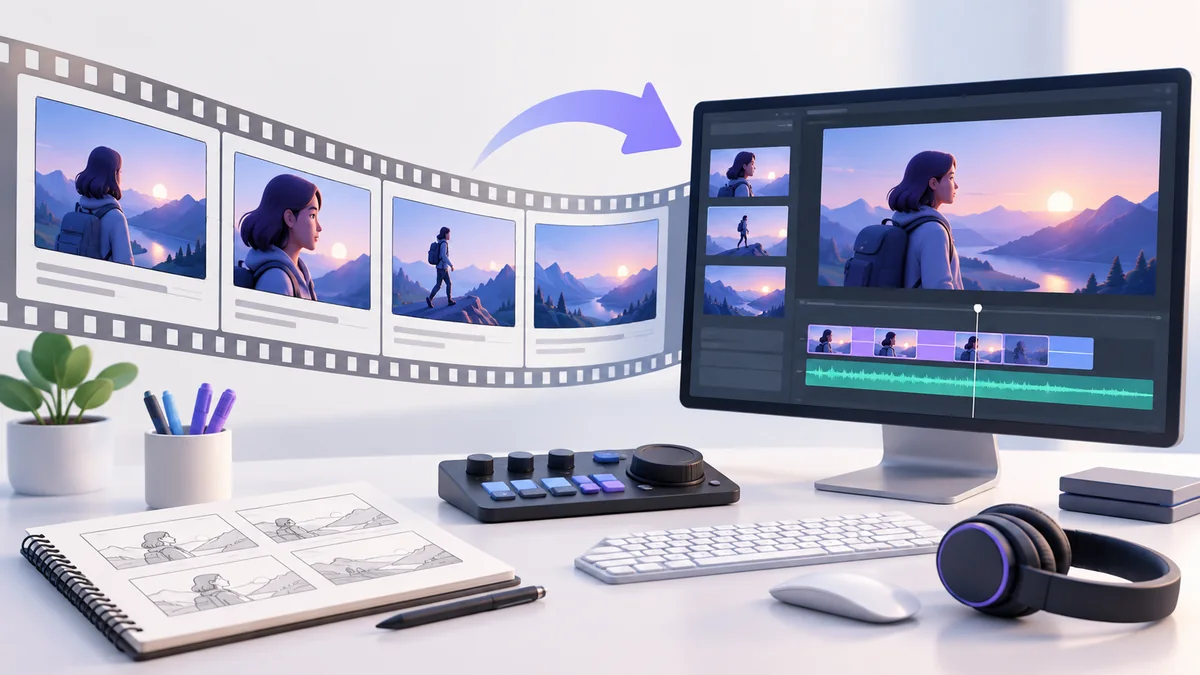
Short AI video is easier to review when each clip has a single job. Gemini’s current official help identifies Gemini Omni for video creation and editing, with eligible Google AI or Workspace access required. Availability and limits should be checked in the current interface. Start with a storyboard rather than asking for an entire finished story in one prompt. Define what appears, what moves, and what the clip must communicate. Generated footage can suggest a concept, but it should not impersonate a real demonstration of an untested product feature.
A practical worked example
Plan a brief introduction for a tutorial on managing project notes. Use one conceptual shot of loose papers becoming orderly folders, then cut to your actual screen recording. The generated clip sets the theme; the real recording proves the software steps. Keep the conceptual shot free of invented interface text and avoid claiming it shows the actual application. Write a separate voiceover so you can correct wording without regenerating visual material.
How to approach the task
Review the first and last frames as well as the middle. Watch for object changes, inconsistent movement, and unreadable labels. Keep camera movement modest when the subject must remain clear. If a clip fails, revise one important instruction at a time: subject, action, framing, or duration. Assemble selected clips in an editor and check audio timing, transitions, and captions. Label illustrative footage appropriately so viewers can tell explanation from product evidence.
Step-by-step workflow
- Write a scene purpose and a short storyboard.
- Confirm current video access in Gemini.
- Generate a focused clip with one subject and action.
- Review temporal consistency and whether the shot implies false evidence.
- Edit alongside real demonstrations and accurate captions.
Reusable prompt
Use this prompt as a starting brief, not a substitute for source material. Replace the brackets with approved information and remove instructions that do not apply. State the result you need before listing background details. If the assistant needs a missing fact to proceed, allow a focused question rather than demanding a complete answer that would require guessing.
Plan a short conceptual intro for a project-notes tutorial. Show disorganized papers becoming clear folders. No fake software UI or readable text. Specify subject, motion, camera, and transition to a real screen recording.After the first response, describe the specific mismatch you want corrected. Name the omitted requirement, unsupported statement, or failing case instead of requesting a vaguely better version. Preserve the source facts during revision. Keep your accepted example together with the prompt so you can distinguish a useful recurring process from a one-time answer that happened to work.
Review checklist
- Objects remain consistent through the clip.
- Concept footage is not confused with product proof.
- Voiceover and captions match the final edit.
Review in two passes. First check substance: whether the output answers the intended question, preserves important constraints, and contains only supported commitments. Then check presentation: whether its structure, wording, and navigation make it usable for the intended reader. Fixing presentation first can make an incorrect answer more persuasive without making it more reliable.
Choose the review depth according to the consequence of being wrong. A fictional practice example may need a quick comparison; a public statement or external action needs stronger evidence. When the result depends on a source, open that source. When it depends on a calculation or program behavior, perform the relevant check. Record what you actually verified and keep unresolved points visibly separate.
| Stage | Useful record | Decision before moving on |
|---|---|---|
| Input | Approved source or reproducible sample | Is the task clear and the information permitted? |
| Draft | Output and explicitly stated assumptions | Does it match the requirement without invented facts? |
| Review | Checked claims or observed test results | Are important errors resolved and limits visible? |
| Handoff | Accepted result and unresolved questions | Can another person use it without hidden chat context? |
Practice exercise
Storyboard an intro in three panels: initial problem, visual transformation, and transition to a real screen recording. Generate only the transformation shot and inspect its beginning, middle, and end. Identify whether the same objects persist and whether the motion communicates the intended change. Place it beside the recording and read the narration aloud. Remove any claim that the conceptual shot proves software behavior. Save the shot’s role and review notes with the editing timeline.
Common problems and repairs
If movement is confusing, simplify the action and camera. If objects change unexpectedly, reduce the scene’s complexity and clarify the subject. If narration overstates the demonstration, correct the script rather than making the clip more dramatic. If a transition feels abrupt, adjust the edit point or add a short explanatory line. Keep visual polish subordinate to whether the viewer understands what is illustrative and what is demonstrated.
Maintain a useful working process
Keep the reviewed result in the place where the work will continue, with a source or version reference when relevant. A teammate should be able to understand the purpose, confirmed information, and remaining questions without reading every chat turn. Remove temporary client details from reusable templates. Record the owner responsible for the next step so an attractive draft does not become an abandoned task.
Recheck the process when the task, source, or product changes. Start with the saved example most likely to be affected and compare the new result with the accepted baseline. If the same defect repeats, repair the instruction or review stage instead of patching the final wording each time. Keep the useful structure, but retire obsolete assumptions. This makes the workflow maintainable without turning every update into a complete rebuild.
Download the prompt and review checklist to keep your own practice record.
Frequently asked questions
Should I generate the whole tutorial as AI video?
Use real screen recordings for software instructions. Generated clips can support an introduction or concept, but they do not prove that the described controls and results actually exist.
What makes a clear video prompt?
Specify one subject, one action, camera behavior, and the intended meaning. Too many unrelated events make temporal consistency harder to review.
How do I review a clip?
Watch the full clip and inspect beginning, middle, and end. Look for changing objects, unnatural motion, unreadable text, and a misleading relationship between voiceover and visuals.
Can I fix a weak scene with more effects?
First repair the scene’s purpose and clarity. Extra effects can hide neither confusing motion nor an incorrect demonstration of the topic.
What should I keep for later revisions?
Save the storyboard, prompt, selected clip, and edited sequence. Keep narration separate so factual corrections do not require rebuilding every visual shot.
Do I need every advanced feature to use this workflow?
No. Begin with the smallest version that produces the reviewed outcome. Check the specific controls and account requirements in the linked official help. If a feature is unavailable, use a sanitized manual input where appropriate instead of assuming an integration or mode exists.
How should I adapt the reusable prompt to my own work?
Replace the example with approved facts and specify the intended reader, result, and constraints. Remove irrelevant instructions rather than stacking more requirements indiscriminately. Keep uncertain details marked unknown, and compare the first output with the original brief before turning the prompt into a recurring process.
What information should I avoid putting into practice examples?
Use fictional or sanitized examples unless the real information is necessary and permitted for the product and account you use. Consider indirect identifiers and confidential context as well as obvious names or credentials. Preserve enough task structure to test the workflow without including unnecessary private detail.
How can I tell whether the assistant actually improved my work?
Compare the reviewed result with a baseline you understand. Look for fewer factual errors, clearer next actions, or reduced repair effort, depending on the task. Do not judge success solely by output length, polished formatting, or a confident tone. Record the defect corrected and the evidence supporting the improvement.
When should I review this guide’s product details again?
The product checks on this page are dated 4 October 2026. Consult the linked official documentation when account options, model names, permissions, or interfaces differ. The worked examples are editorial methods rather than a promise that every feature is available to every user or remains unchanged indefinitely.
Sources and related guides
Use these official resources to check product behavior and availability. The practical scenarios above are fictional examples, not measured product benchmarks. When a current interface differs from this guide, prefer the applicable official documentation and recheck your account. Keep source evidence beside conclusions rather than treating links as decorative proof.
Continue with Gemini for Learning English: A Feedback Routine, or Gemini for Coding: Debug Small Reproducible Problems. Compare another assistant’s approach in the practical Claude beginner guide.