


Claude can help explain spreadsheet formulas and propose alternatives, but a formula is only useful when it matches your workbook’s structure and passes real checks. This guide shows how to turn a spreadsheet question into a precise brief, test a proposed formula, and document assumptions. The focus is a small task tracker rather than an impressive-looking formula that silently counts the wrong rows.
What this workflow helps you do
This is a practical, evergreen workflow for claude for excel. Start with a small example and move to real work only after the result meets your requirements. The examples are hypothetical teaching scenarios, not claims about measured customer outcomes. Interfaces, account capabilities, and policies can change; use the official resources below to check current product details.
Worked example
Imagine a worksheet where column A contains task names, column B contains owners, and column C contains status. You need to count completed tasks for one owner. Provide the column meanings, a few synthetic example rows, the desired result, and the spreadsheet application. Ask Claude to explain the matching conditions before suggesting a formula. Test a completed task with a different owner, an incomplete task for the correct owner, and an empty row. Those cases reveal whether the formula checks both conditions instead of producing a plausible total by accident.
Important principles
The workbook environment matters. Function availability, separator conventions, text matching, and date representations can differ between applications and locales. Describe those details instead of pasting a screenshot with unclear column names. Never share an entire sensitive workbook when a synthetic sample can demonstrate the issue. A good explanation should identify input ranges, matching rules, and behavior for blanks or errors, then show how to validate the output using values you can calculate independently.
Step-by-step workflow
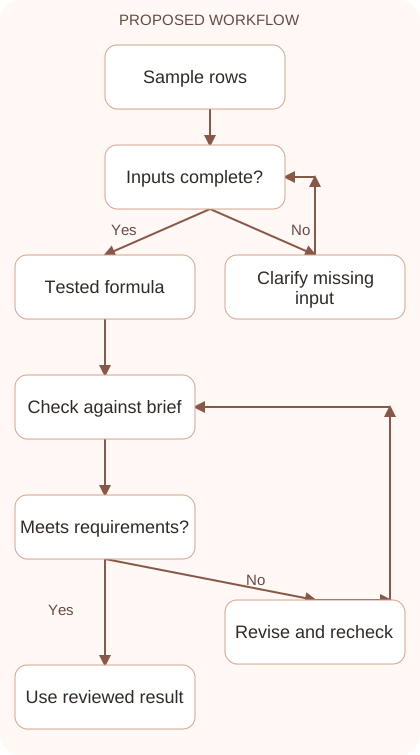
- Describe the table structure and the question in plain language. State the application, relevant columns, example values, and the expected answer for a small known dataset.
- Ask Claude to explain the logic before writing a formula. Confirm which conditions must all be true and how blanks, spelling variations, and duplicate rows should behave.
- Request a formula suited to your application and locale. Review its ranges and references before pasting it into a copy of the workbook for testing.
- Test normal and edge cases with manually known answers. Include a wrong owner, different status, blank cells, and any date boundary relevant to the actual question.
- Document the approved formula and its assumptions. Keep the test rows available so future workbook changes can be checked without rediscovering the original logic.
Workflow graph
Reusable prompt
I use [spreadsheet application and locale]. Columns are A: task, B: owner, C: status. Count rows where owner equals the value in E2 and status is Complete. Explain the conditions, suggest an appropriate formula, and give test cases for blanks and mismatches. Sample rows: [synthetic data].Replace the bracketed fields with approved information. Keep the prompt as a draft template: the person responsible for the work must still check its output before using it.
Quality checks and troubleshooting
- The formula checks every required condition.
- References point to the intended rows and columns.
- Known example totals match independently calculated results.
Create a small test sheet with a matching completed task, a matching incomplete task, another owner’s completed task, and an empty row. Write the expected count manually. Change the target owner and verify the formula updates correctly. Check whether extra spaces or inconsistent status labels occur in real data; decide whether cleaning or explicit matching should handle them. Do not hide data-quality problems inside an unnecessarily complicated formula. A maintainable workbook makes its assumptions visible to the next person using it.
| Stage | What to prepare | What to verify |
|---|---|---|
| Input | Approved information and a defined question | Relevant evidence or a reproducible example |
| Draft | A result that follows the requested format | No hidden assumptions or unsupported promises |
| Review | A check against the brief and original material | Correct facts, behavior, and important conditions |
| Handoff | A usable result with remaining limits stated | The next person knows what was checked |
Practice and improve the workflow
Run a small practice cycle before expanding this workflow. Choose an input whose correct result you already understand, complete the task once, and compare the output with your own independent check. Record the prompt, the source or example, the mistake you found, and the correction you accepted. Change only one important variable on the next attempt so you can see whether the improvement came from clearer context, a better instruction, or a more useful review step.
Keep a reviewed example as your baseline. When the task, source material, or tool changes, repeat the checks most likely to be affected. If a recurring defect appears, revise the process instead of patching the final wording every time. Save the useful structure while removing previous client details and obsolete assumptions. This habit makes the workflow easier to maintain and easier to explain to a teammate who did not see the original conversation.
Download the plain-text prompt and review checklist for your own practice notes.
10 frequently asked questions
Can Claude write Excel formulas?
It can propose and explain formulas. Test them in your actual spreadsheet application because workbook structure, available functions, and regional settings affect behavior.
What information should I provide?
Give the application, column meanings, sample rows, expected result, and important edge cases. A small synthetic example is often enough to clarify the problem.
Why might a formula fail when pasted?
Check separator conventions, function availability, sheet names, ranges, and quotation marks. An explanation that ignores your application may not produce a directly usable formula.
Should I upload the full workbook?
Use a minimal example when possible. Share only approved data and remove unnecessary personal, financial, or client details before providing any workbook material.
How do I test a counting formula?
Create rows that should match and rows that should fail each condition. Compare the formula’s total with a manual count of the small test set.
Can Claude help explain an existing formula?
Yes. Supply the formula and describe its input columns. Ask for a plain-language explanation of ranges, conditions, and what happens when cells are blank.
What if the answer looks correct on one row?
Test additional cases and boundary values. A formula can work for one example while failing when text changes, rows are added, or values are missing.
How do I avoid broken references?
Review relative and absolute references before copying formulas. Test the copied version in several rows to confirm the intended ranges remain stable or move correctly.
Can I use a suggested formula for reporting?
Use it after verification and keep assumptions documented. Reports affecting important decisions need suitable review of the underlying data as well as the formula.
What should I save with the formula?
Keep its purpose, input definitions, example tests, and expected results. Those notes make later repairs and handoffs much easier for another spreadsheet user.
Resources and related guides
Official documentation supports current product details; the worked examples, diagrams, and review routines on this page are editorial recommendations. Check relevant account settings and organizational rules before using a feature with real work.
- Anthropic prompting guidance
- Anthropic guidance on reducing hallucinations
- Official Claude file upload guide
Continue with the Claude Data Analysis: From Clean Data to Clear Findings to develop a related skill, or use the Claude for Coding: Understand, Debug, and Review Code for the next practical task. For another assistant’s approach, compare the related ChatGPT or AI workflow guide.