Editorial check: October 5, 2026. Official release: September 17, 2026.
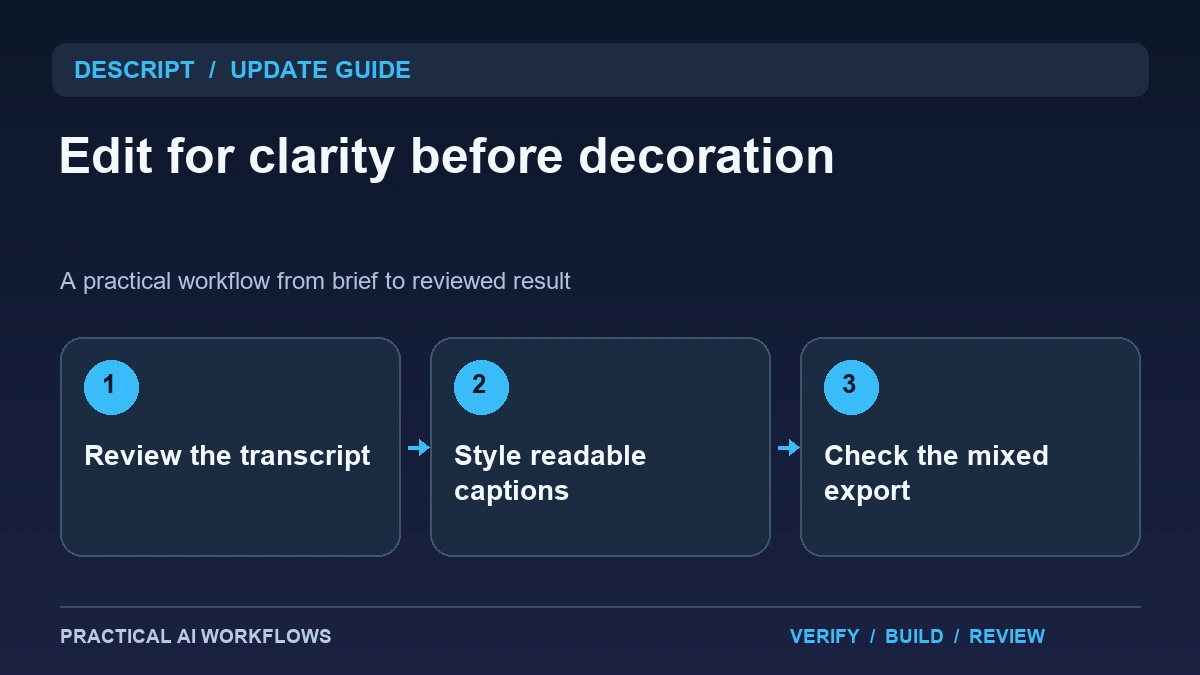
Illustration: an original editorial workflow graphic created for this article.
What the September release roundup includes
Descript's September 17 roundup describes redesigned caption presets and animations, generated music and sound effects, and other editing improvements. The announcement gives a version requirement for the audio-generation feature, so check the installed application before expecting the same controls. These additions can shorten editing tasks, but they do not establish that an automatically styled transcript or generated soundtrack is ready for publication.
Begin with a recording whose message you understand and a clear destination such as a tutorial or short social clip. Improve meaning and pacing before decorating the video. This guide explains a sequence for transcript review, caption design, selective audio generation, and export checks. The useful outcome is a video that is easier to follow, with fewer distractions and a record of what was reviewed.
Fix transcript meaning before cutting the recording
Read the transcript while listening to the original audio. Check names, tool labels, numbers, and technical terms. A transcription error can affect captions and any edit made by deleting or rearranging words. Correct it before treating the text as an accurate representation of the recording.
Decide which material is necessary for the viewer's task. Remove repeated setup or a long digression only when it does not remove the explanation needed for the next step. Listen across each cut and check that the meaning still holds. Keep the original recording and an accepted edit version so changes remain recoverable. A clear transcript is a foundation for the whole workflow, while an attractive caption style cannot repair a sentence that now communicates the wrong instruction.
Continue the workflow: ElevenLabs Voiceovers: From Script to Natural Audio.
Choose a caption style by readability
Select a style that fits the content and destination. Inspect it at normal playback speed and at the size where viewers will watch. Check contrast, line length, placement, and whether important interface details remain visible. A fast tutorial may need restrained captions rather than constant motion around every word.
Use emphasis only when it clarifies a point. Avoid highlighting arbitrary words because a preset makes it easy. Check long technical names and sentences with numbers, because line breaks can change how viewers interpret them. Review the timing around pauses and scene changes. If the video includes important instructions, keep a written reference or description alongside it. Caption design succeeds when it helps comprehension without covering the evidence or competing with the speaker.
Generate only the audio the scene needs
Define the purpose of a music bed or sound effect before requesting it. A tutorial may need quiet background support for an opening and no music during a detailed explanation. Describe the mood, approximate length, and role of the sound without asking it to dominate the scene.
Listen to the generated audio with the voice track and adjust the mix. Watch for sudden loudness, distracting changes, or effects that imply an event absent from the video. Keep the source voice understandable and compare a version without music. If the simpler version communicates better, use it. Save approved audio separately where possible so a later narration edit does not require regenerating the entire production. Generation provides options, while editorial judgment determines which option belongs.
A worked example: a screen-recorded setup guide
A fictional creator records a short tutorial showing how to organize research sources. The transcript contains one misheard product name and a repeated explanation. Correct the name, remove the repetition carefully, and check that the next screen action still matches the narration.
Add readable captions that avoid the controls being demonstrated. Use a short music bed for the opening, then reduce or remove it during the detailed steps. Inspect the exported video on a phone and confirm the key labels remain visible. Ask a new viewer to follow the tutorial using the recording. The example evaluates the new editing options through comprehension and practical use rather than the amount of animation or sound added.
Continue the workflow: HeyGen Explainer Videos: Write, Build, and Review Each Scene.
Fix captions that look animated but read badly
Animated captions can draw attention to a tutorial's key instruction, but they can also compete with the demonstration. Consider a sentence appearing over the exact button the speaker is asking viewers to click. Move the caption or reduce its size before experimenting with another animation. Watch the segment at the intended mobile display size and check whether a viewer can identify the button and read the instruction at the same time. The caption's useful job is to clarify the lesson.
Review names, product terms, numbers, and short words that automatic transcription often confuses in your particular recording. Compare each correction with the audible speech. For a longer tutorial, check the first appearance of every important term and sample transitions where captions switch quickly. Listen to generated music or effects alongside the narration and reduce anything that makes a word harder to hear. Keep a clean reference export without decorative sound so the team can compare intelligibility. After the final render, check the actual file rather than relying only on the editor timeline. A readable preview is helpful, but the delivered video needs to preserve timing, placement, and audible instruction.
Verify the actual export and keep a correction path
Export the intended format and open the file outside the editor. Check caption behavior, audio balance, first and last frames, cropping, and any subtitle track selected for delivery. Review the full file at normal speed, because isolated scene checks can miss a transition or timing issue.
Archive the original media, corrected transcript, accepted project version, and final export. Keep a note of factual references that may need updating. For recurring tutorials, reuse the review sequence and a small set of caption styles rather than inventing a different look each time. Measure total editing and repair effort. The update is useful when it reduces repeated production work while preserving clarity. A dependable tutorial still starts with accurate meaning and ends with a reviewed file a viewer can actually follow.
Frequently asked questions
When were these changes documented?
Descript's official roundup is dated September 17, 2026. It includes caption and audio-generation changes, with version-specific instructions for the latter.
Should caption styling come before transcript review?
Review meaning and transcription first. Errors in names, numbers, or technical terms can spread into captions and text-based edits.
Are animated captions always better?
Choose the style that improves readability for the destination. Excessive movement or emphasis can distract from a detailed explanation.
Does every tutorial need background music?
No. Compare the mixed version with a simpler one and keep the narration clear. Add audio only when it serves the scene's purpose.
Why inspect the exported file?
Caption options, cropping, timing, and sound can differ from what you expected in the editor. Check the file the audience will actually receive.
What should be archived?
Keep original media, the corrected transcript, accepted project, factual references, and final export. This makes later corrections and updates easier.
Resources and references
Official references checked on October 5, 2026. Consult the current documentation for access, setup and limitations.