
Updated October 5, 2026. A practical guide to ElevenLabs, with examples, FAQs and official resources. Check the linked product documentation for current access, setup and limitations.
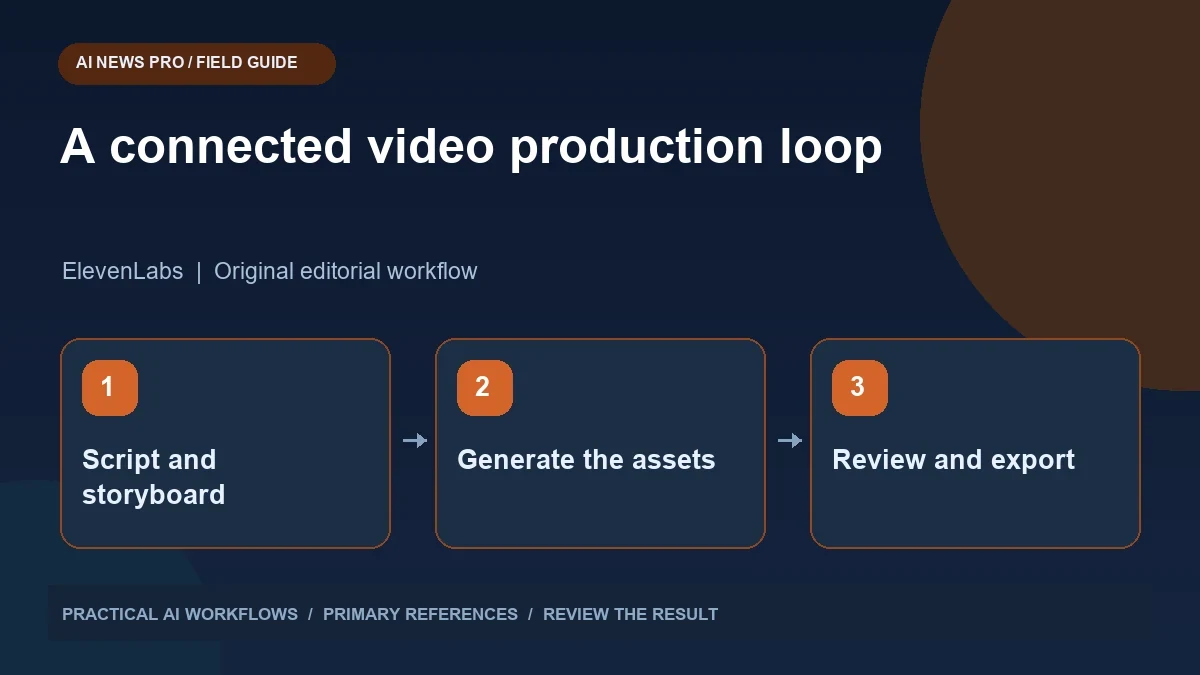
Illustration: an original editorial workflow graphic created for this article.
Understand what the connection changes
ElevenLabs creative tools can be connected through MCP to coordinate an AI-assisted production workflow. ElevenLabs documents voice, music, image, and video capabilities in its creative tooling. Output options vary by the particular service and model, so high-resolution support in one mode does not establish the same resolution or duration everywhere. Begin with a short production brief and a script you can review. The assistant can help request and organize assets, but a coherent final video still requires timing, continuity, and factual checks. This guide explains a manageable sequence from storyboard to reviewed export, with clear naming and evidence for each scene.
MCP is useful because an assistant can coordinate operations through a tool connection. It does not replace a production plan or guarantee a finished, coherent film. Treat the assistant as a coordinator that prepares scripts, requests assets, organizes results, and helps review them. Begin with a short explainer using fictional or approved material. Define the audience, message, length, visual style, and final destination before connecting several generators. Those decisions prevent a collection of attractive clips from becoming an unfocused video.
Write the script and timing first
Draft the spoken script in normal text and read it aloud. Remove sentences that are difficult to say or require unexplained jargon. Estimate the duration using an actual voice sample rather than assuming every voice speaks at the same pace. Mark pauses and words whose pronunciation needs attention.
Split the script into scenes. For each scene, record the spoken line, visual purpose, approximate duration, and transition. A useful storyboard explains why the image belongs there. If a scene says a tool can compare three options, the visual should help the viewer understand that comparison instead of showing unrelated futuristic imagery. Prepare on-screen text separately, because text rendered inside a generated image can be hard to edit or read. Approve the script and storyboard before spending time generating many assets.
Continue the workflow: ElevenLabs Voiceovers: From Script to Natural Audio.
Configure a small, inspectable connection
Follow ElevenLabs' current MCP connection instructions for your chosen client. Confirm which tools appear and which workspace they use. Run a small test with non-sensitive text and inspect the returned asset. Keep credentials in the documented configuration mechanism and out of scripts, repositories, and screenshots.
Name the project and establish an output directory before generating assets. Use scene identifiers such as scene-01-voice and scene-01-visual so revisions remain traceable. Record the model, settings, source prompt, and date for each asset where available. Avoid asking the assistant to use every available tool in one broad request. A simple sequence—generate a voice sample, approve it, generate one visual, then review the combination—reveals quality and configuration problems before they multiply across an entire production.
Generate assets against a shared creative brief
Use a consistent style sheet for visuals: aspect ratio, color palette, camera language, subject description, and elements to avoid. Keep characters and product details stable across scenes. When a generated clip changes a logo, interface, or factual label, correct the problem instead of hiding it with a fast transition.
For voice, listen to proper names, abbreviations, numbers, and sentence endings. For music, decide whether it supports narration or competes with it. Save clean voice and music tracks separately so you can adjust the mix later. If you use a real person's likeness or voice, obtain the necessary permission and follow the service's requirements. Fictional narrators and approved brand assets make the first experiment simpler. Judge assets by whether they serve the script, not by how impressive they look in isolation.
Review the assembled video as a viewer
Watch the assembled sequence at normal speed without pausing. Can someone unfamiliar with the topic explain the main message afterward? Check whether the opening establishes the subject quickly, whether visuals match the narration, and whether the final action is clear. Then inspect the technical details: audio levels, captions, scene timing, text readability, and transitions.
Review on the device where the audience will watch it. A title that looks clear on a desktop preview may be unreadable on a phone. Captions should preserve meaning and fit the timing rather than transcribing errors from the voice track. Check factual claims separately from production quality. A polished video can still misstate a product capability. Keep a list of issues by scene identifier and revise the specific asset or edit responsible for each problem.
Continue the workflow: Runway AI Video: Plan Better Shots and Edit the Results.
A worked example to try
Create a fictional thirty-second explainer about organizing research notes. Use three scenes: collect sources, compare evidence, and write a brief. Generate and approve a short voice sample before producing all narration. Request one visual per scene with the same palette and aspect ratio, then assemble them using the approved timing.
Watch the result without sound to check whether the visuals communicate the sequence. Then listen without looking to evaluate the narration. Finally, review the combined version and inspect captions. If the second scene is unclear, revise that scene rather than regenerating everything. Save the clean voice track and editable scene plan. The example produces a manageable first studio project and reveals whether the connected tools help you coordinate production effectively.
Export, archive, and evaluate the workflow
Choose the export format and resolution appropriate to the destination and supported by the selected tools. Higher resolution does not repair an inaccurate scene or poor narration. Confirm the final file plays outside the production application and that its sound and captions remain intact. Save the approved script, storyboard, asset list, and final export together.
Track time spent on preparation, generation, review, and revisions. Record failed attempts and costs as part of the experiment. This tells you whether the connected workflow is useful for your actual production needs. Reuse the approved style sheet and scene template for the next video, but update factual references each time. The strongest studio workflow combines consistent preparation with selective generation and human review. Its advantage is coordinated production, not the assumption that a single prompt removes the need to edit.
Frequently asked questions
What does MCP contribute to video production?
It connects a compatible assistant to available tools so it can coordinate asset creation and retrieval. Planning, editing, and review still determine the quality of the final video.
Can every video model export 4K?
No. Resolution and duration depend on the selected service and model. Check the relevant documentation and actual export settings before promising a format.
Should I generate visuals before the script?
A script and storyboard usually reduce wasted generation. Define what each scene needs to communicate before requesting voice, image, music, or video assets.
How do I keep scenes consistent?
Reuse a style sheet, stable subject descriptions, aspect ratio, and naming scheme. Review product details and character continuity in every generated scene.
Can I use any voice I find online?
Use voices and likenesses you are authorized to use and follow the service requirements. Approved or fictional material makes early production experiments simpler.
What should I save after export?
Keep the script, storyboard, approved assets, generation settings where available, revision notes, and final file. This makes updates and corrections much easier.
Resources and references
Use these links to verify capabilities, access and setup. Product documentation can change after this editorial check.