
Editorial check: October 5, 2026. Official release: October 1, 2026.
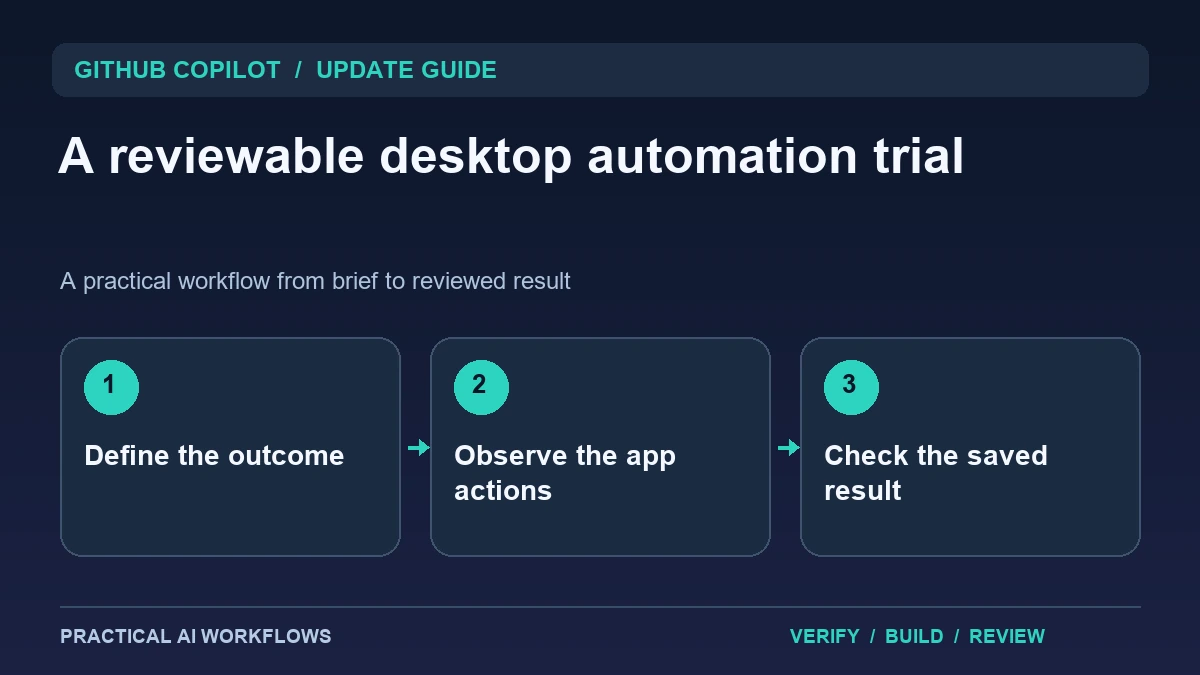
Illustration: an original editorial workflow graphic created for this article.
What the public preview enables
GitHub's October 1 announcement introduces computer use in public preview for Copilot CLI and the Copilot app on macOS and Windows. The description covers interactions with desktop applications, with user approvals and organization-managed controls. It gives enable and status commands for CLI users. Preview access should be verified in your actual environment rather than assumed from the announcement alone.
The useful question is whether a bounded GUI workflow can be completed correctly and reviewed afterward. Choose an example with fictional data and a visible result. Define the application, input, expected output, and stopping point. This guide explains how to design that first trial, observe app interactions, inspect the saved state, and evaluate recovery. A successful click sequence is only one part of completing a task dependably.
Describe the outcome and limits in the brief
Write the job in terms of a result, not a long list of approximate screen coordinates. For a document example, specify the destination file, exact supplied content, and formatting requirement. For a data-entry trial, identify the fictional record and fields. State what the agent may read and what it may change.
Define a review point before an external commitment, such as submitting a record or sending a message. A vague request to finish everything can leave unclear boundaries around actions the user did not intend. Include what to do if the app state differs from the brief. The agent should inspect and report uncertainty rather than click through an unfamiliar dialog blindly. Clear boundaries make the observed behavior easier to judge and give the user a practical way to steer the trial.
Continue the workflow: Grok Bot vs Dots vs Hermes Agent: Compare the Workflow You Actually Need.
Prepare a controlled app state
Use a test file, draft, or sandbox record where the work can be inspected without affecting real customers. Close unrelated sensitive material from the task view and confirm the intended account or workspace. Keep the original file or record available for comparison. Follow the product's current permission instructions for the platform you use.
Check the app's initial state before starting. A modal, old selection, or unexpected tab can change the meaning of an otherwise plausible action. Give the agent enough context to identify the right object and require confirmation when it cannot distinguish candidates. Record the starting state in a short note. The goal is a trial whose inputs and boundaries are known, making it easier to identify whether a mistake came from ambiguous instructions, navigation, or interpretation.
Inspect application results, not only agent narration
Observe the interactions and verify the final state directly. A success message in the agent conversation does not establish that the application saved the intended content. Open the resulting file or record and compare it with the brief. Check every important field, destination, and status.
Look for partial completion. The agent may enter text but fail to save, update one field while leaving another unchanged, or act on a similarly named object. Keep a defect note with the expected and observed behavior. If a repair is needed, give a narrow request that identifies the actual error. This makes the process more dependable than repeatedly asking the assistant whether the task is complete and accepting the confidence of its response as evidence.
A worked example: a fictional presentation update
A test deck contains a slide explaining three stages of a research process. The brief supplies revised text and asks for a readable layout while preserving the slide's role. The agent opens the intended file, edits the content, and saves a new draft for review.
Inspect the slide for missing words, line breaks, clipping, and accidental changes elsewhere in the deck. Open the saved file again to confirm the edit persisted. If the app displays a font warning or unexpected dialog, the task should pause for inspection rather than dismissing it automatically. The example evaluates identification, editing, visual review, and persistence without requiring a real external submission to demonstrate computer-use value.
Continue the workflow: AI Agent Cybersecurity: Defending Against Prompt Injection, Jailbreaks, and Poisoning.
Recover from a desktop action that targets the wrong window
A desktop task can go wrong because the active window changes while the assistant is carrying out an instruction. For a fictional test application, define the expected starting window, screen, and record before enabling an interaction. Keep unrelated applications out of the test path and use synthetic data. Ask the assistant to inspect the visible state before the next consequential step. A click at a remembered position is not sufficient evidence that the intended control is still there.
If the wrong window receives input, stop the sequence and inspect the actual outcome. Determine whether text was merely entered or whether an action was submitted. Restore a known starting state before retrying, and reduce the task to the smallest useful step. Record the expected target and observed target in the test note. Review screenshots carefully before sharing them because a desktop can contain information unrelated to the task. The useful acceptance criterion is a complete, observable workflow with clear stopping points and a recoverable result. A fast demonstration that happens to work once is weaker evidence than a modest task that behaves predictably when a dialog appears, focus changes, or an expected control is unavailable.
Test cancellation and decide whether to reuse the workflow
Interrupt a controlled trial and inspect the remaining state. Determine whether changes were saved, whether the app is left in a modal, and what a resumed request should do. Avoid restarting from an assumption that nothing happened. A desktop task can have partial effects even when the agent reports a failure.
Document the approved scope, app setup, input requirements, review point, successful result, and recovery steps. Compare the effort with a simpler API, script, or manual process where available. Computer use is especially worth evaluating when the necessary application lacks another practical integration, but it still needs observable outcomes. The preview is useful when it reduces repetitive interaction while leaving the user able to inspect, stop, and correct the workflow.
Frequently asked questions
When was computer use announced?
GitHub's official post is dated October 1, 2026 and labels the capability a public preview for macOS and Windows in supported Copilot clients.
Does the announcement guarantee access in my organization?
No. Check the client, platform permissions, account, and organization-managed controls documented for your environment.
What is a suitable first task?
Use a bounded workflow with fictional data and a visible output, such as editing a test document. Define the destination and stopping point explicitly.
Does an agent's success message prove completion?
Inspect the application state or saved file directly. Verify important fields and persistence rather than relying only on narration.
Why test cancellation?
A stopped task may leave partial edits or a modal. Understanding that state makes recovery clearer and reduces accidental repeated actions.
When is a simpler integration preferable?
Compare review effort and reliability. An API or script may be more suitable when it provides a clear, stable path to the same result.
Resources and references
Official references checked on October 5, 2026. Consult the current documentation for access, setup and limitations.