Updated October 5, 2026. A practical guide to Ideogram, with examples, FAQs and official resources. Check the linked product documentation for current access, setup and limitations.
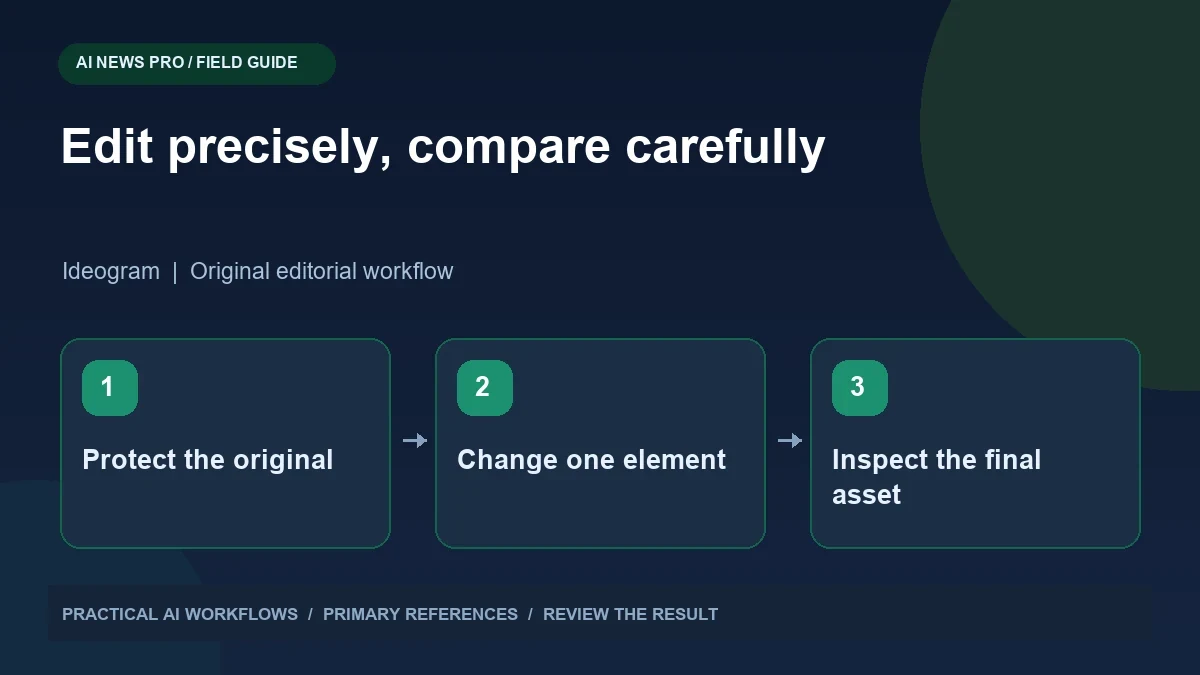
Illustration: an original editorial workflow graphic created for this article.
Turn a precision claim into a practical test
Ideogram image editing can be evaluated for product graphics, localized text, and banner revisions. Precision is best judged against a particular edit brief rather than a universal claim of superiority over other tools. Write down the intended change and the details that must remain fixed, then compare the output with an untouched original. A visually attractive result can still alter packaging, lettering, proportions, or a factual product detail. This guide explains a controlled sequence for preparing the brief, changing one element at a time, reviewing text, and exporting a usable asset. Keep accepted versions so a later revision does not quietly redefine the original design.
Choose a source image you own or are authorized to edit. Write down the intended change and the elements that must stay fixed. For a fictional product banner, the goal might be changing the background while preserving the packaging shape, label, and proportions. Save the untouched original before generating anything. This gives you a stable reference for evaluating changes and prevents a series of revisions from gradually redefining what the product is supposed to look like.
Prepare a specific edit brief
Describe the subject, desired change, fixed elements, layout, and output destination. State whether the image is a concept or a factual representation of an existing product. Use clear instructions such as replace the plain background with a soft blue studio background, preserve the box geometry, and leave room for text on the right.
Avoid asking for several unrelated improvements in one request. A background change, packaging redesign, new lighting, translated label, and different camera angle make it hard to identify why an output changed. If the task needs all of them, plan a sequence and review each stage. Keep important commercial details in normal text outside the generation prompt as a checklist. The prompt guides the tool, while the checklist helps you judge whether the returned image actually satisfies the intended use.
Continue the workflow: ElevenLabs MCP: Plan an AI Video Studio from Script to Reviewed Export.
Change one visual element at a time
Start with the smallest meaningful edit and compare the output with the original. Inspect edges, perspective, shadows, texture, and any text that should remain unchanged. Reject a version that improves the background but alters a critical product detail. Do not assume an untouched region stayed identical merely because the instruction said to preserve it.
Keep accepted versions with descriptive names and record the edit request. If a later revision degrades the image, return to the last accepted version rather than repeatedly editing a compromised result. Multiple generations can introduce subtle drift that becomes obvious only when compared with the original. Use side-by-side inspection at full size and at the intended display size. The controlled sequence makes it easier to find the point where quality changed and to request a targeted correction.
Handle text and localization separately
For banners, write the exact copy before editing the image. Check spelling, capitalization, numbers, and any claim that needs substantiation. Use the editor's text or layer features where appropriate so corrections do not require regenerating the whole scene. Keep essential information in accessible page text when the graphic will appear on a website.
For localization, use a reviewed translation rather than asking the image model to invent a slogan in another language. Text length changes layout, so inspect line breaks and spacing after replacement. A translated price, date, or qualification must preserve its meaning. Ask a fluent reviewer to check the final asset when the material matters commercially. Good visual text is not only legible; it is accurate, culturally appropriate, and consistent with the destination where the image will be used.
Review the asset as a product communication
Inspect whether the image creates an inaccurate impression. Packaging size, included accessories, finishes, and displayed interface states can all influence expectations. If the output is conceptual, label it appropriately. Do not publish a generated product scene as documentary evidence of a feature you have not verified.
Check cropping across placements. A wide website banner and a square social post may need separate compositions rather than one automatic crop. Review contrast and text size on a phone. Ensure there is room for interface overlays where relevant. For an advertisement, confirm that the visual and accompanying copy make the same claim. Keep a checklist for the details most important to your product so review does not depend on remembering every requirement after an attractive result arrives.
Continue the workflow: HeyGen Explainer Videos: Write, Build, and Review Each Scene.
A worked example to try
For a fictional tea-box banner, preserve the box geometry and label while replacing a gray background with a pale blue setting. Inspect the approved edit beside the original, paying attention to lettering and edges. Add the marketing headline in a separate editable layer rather than asking a new generation to redraw the whole package.
Create a square placement from the accepted composition and check that the crop does not cut off the product or make the headline too small. Export both versions and inspect the resulting files outside the editor. Record which steps required manual correction. This small exercise tests preservation, text handling, alternate layout, and final export—the details that determine whether an attractive generated concept becomes a usable product graphic.
Archive a reusable production recipe
Save the source asset, approved output, prompt sequence, text copy, settings where available, and review notes. Export the format required by the destination and inspect the actual file after export. Compression, transparency, and resizing can change the final appearance even when the editor preview looked correct.
Measure the number of attempts and the time spent repairing details. Compare the workflow with a conventional editor for the same job. AI editing may be especially useful for exploring visual alternatives, while precise layout or repeated text changes may be simpler in a layer-based design tool. Choose the combination that produces accurate assets efficiently. The recent demonstration is a useful reason to test Ideogram, but a dependable production process still starts with a clear brief, preserves an original reference, and ends with a reviewed file.
Frequently asked questions
Is Ideogram universally the most precise editor?
A personal preference is not a controlled universal benchmark. Test the specific edits and preservation requirements that matter for your assets.
Why change one element at a time?
It makes unintended changes easier to identify and correct. Combining many edits can hide which request altered a product detail or reduced quality.
How do I avoid drift after repeated edits?
Save the original and each accepted version. Compare against the original and return to a clean accepted version when later revisions introduce unwanted changes.
Should the model translate commercial copy?
Use reviewed translations for important material. Check meaning, spelling, prices, qualifications, and layout in the final graphic with an appropriate reviewer.
Can generated product images mislead viewers?
Yes, if they alter factual details or imply unverified features. Review the output carefully and label concepts when they are not documentary representations.
What should I archive?
Keep source files, approved exports, exact copy, edit prompts, settings where available, and review notes. This supports consistent updates and targeted corrections.
Resources and references
Use these links to verify capabilities, access and setup. Product documentation can change after this editorial check.